


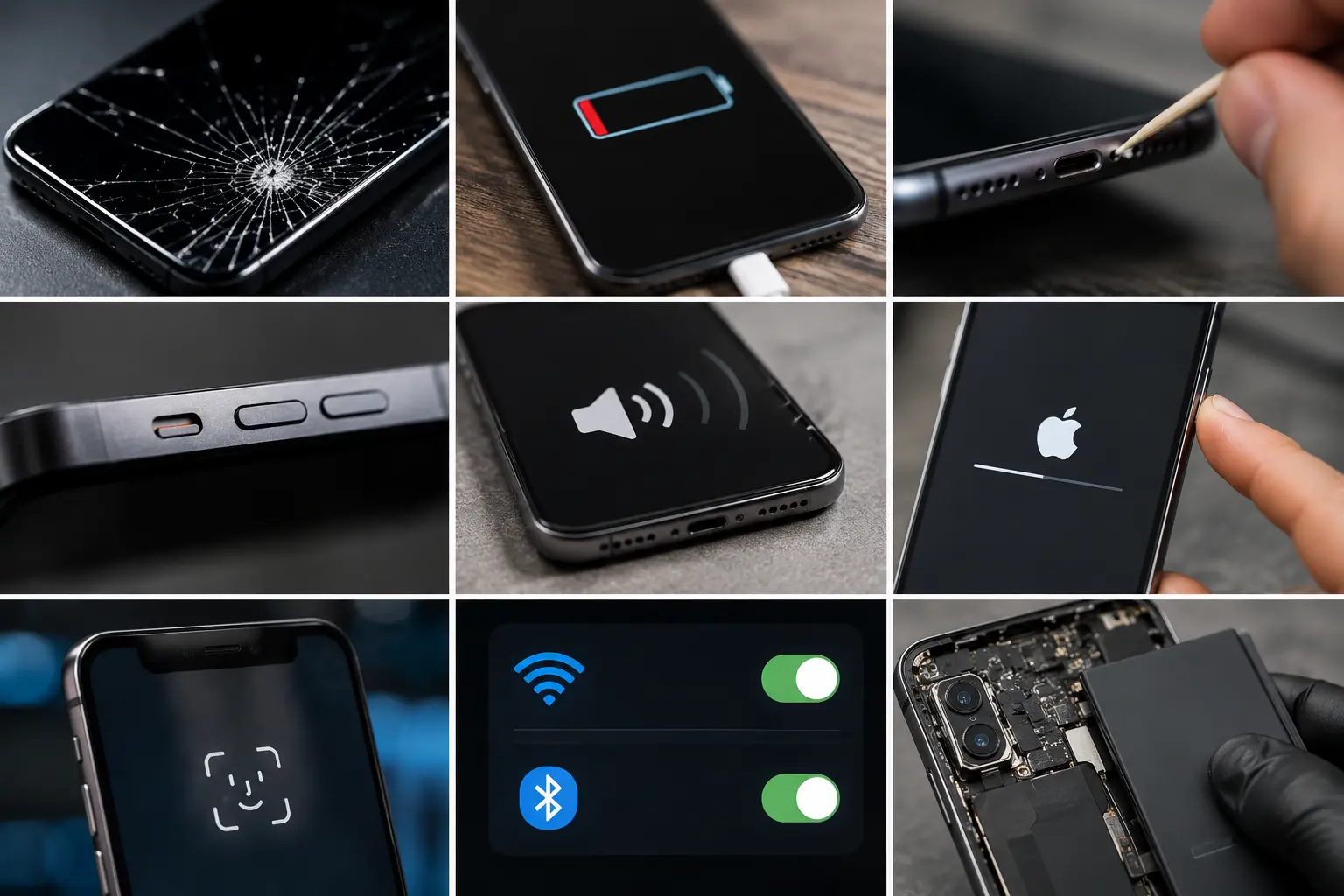
The Issues We See Most Often
iPhones are reliable devices, but they're not immune to problems. Here are the seven issues that come up most frequently, what causes them, and when you can fix them at home versus when it's time for a repair.
1. Cracked Screen
The most common iPhone repair by a wide margin. Ceramic Shield glass is tougher than older iPhone glass, but it still cracks from drops, especially on hard surfaces like concrete or tile.
If the screen is cracked but touch still works and there are no display artifacts (black spots, colored lines), you can continue using it short-term with a tempered glass protector to hold fragments in place. But cracks let dust and moisture inside over time, so get it repaired before secondary damage develops. Full details on our iPhone repair page.
2. Battery Draining Fast
Check Settings > Battery > Battery Health & Charging. If Maximum Capacity is below 80%, the battery has degraded past Apple's recommended threshold and needs replacing.
If the battery health is fine but drain is still fast, look at Settings > Battery for the app usage breakdown. Background activity from apps like social media, email, and location services is the usual culprit. Turn off Background App Refresh for non-essential apps and disable Location Services for apps that don't need it.
3. iPhone Won't Charge
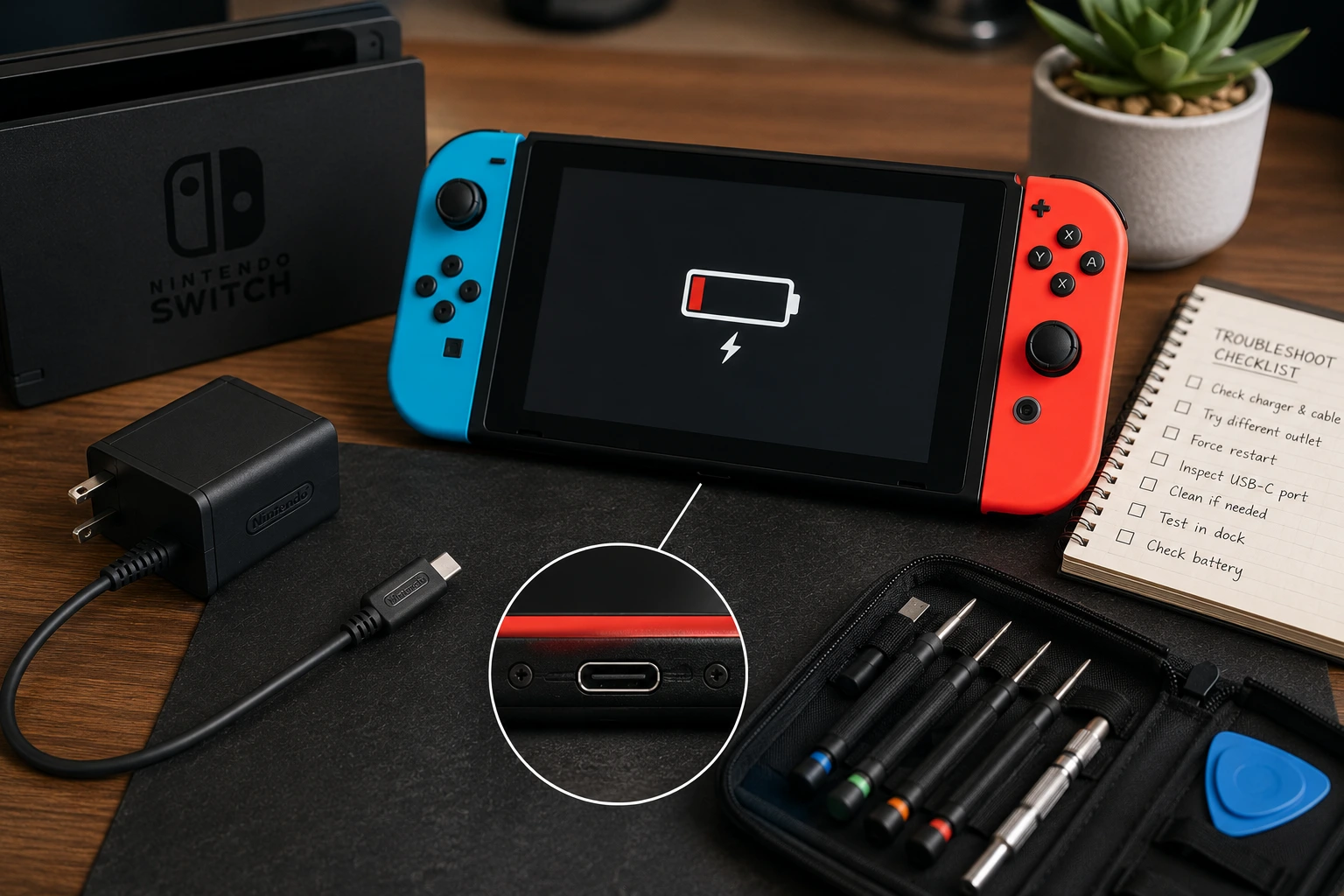
Start with the cable and adapter (swap both). Then clean the charging port with a wooden toothpick to remove lint buildup. If neither fixes it, the charging port or battery may need replacing. We've written a detailed troubleshooting guide: Why Won't My iPhone Charge.
4. No Sound or Speaker Issues
Check the silent switch, volume levels, and Do Not Disturb settings first. Clean the speaker grilles with a soft brush. If software checks pass and the speaker still doesn't produce sound, the speaker hardware needs replacing. Full walkthrough: How to Fix No Audio on Phone.
5. Frozen or Unresponsive Screen
Force restart: press and release Volume Up, press and release Volume Down, then hold the Side button until the Apple logo appears. This works on iPhone 8 and all newer models.
If the phone freezes repeatedly, try updating iOS (Settings > General > Software Update). Persistent freezing after an update may require a factory reset.
6. Face ID Not Working
Go to Settings > Face ID & Passcode > Reset Face ID, then set it up again. Make sure nothing is covering the TrueDepth camera at the top of the screen (screen protectors that cover the notch/Dynamic Island can interfere).
If Face ID still won't work after a reset, the TrueDepth camera assembly or a related flex cable may be damaged. Delete this sentence fully. Replace with: Bring it in for a free diagnostic and we will tell you what can be done for your model.
7. Wi-Fi or Bluetooth Connectivity Issues
Toggle Wi-Fi/Bluetooth off and on. If that doesn't help, go to Settings > General > Transfer or Reset iPhone > Reset > Reset Network Settings. This clears all saved networks and Bluetooth pairings and often resolves persistent connectivity problems.
If connectivity issues persist across all networks and Bluetooth devices, the Wi-Fi/Bluetooth antenna or IC may have a hardware fault.
Most Common iPhone Repairs at Our Shop
These seven issues are exactly what Albuquerque iPhone owners bring to us most often. Screens and batteries account for the majority, with charging port and speaker repairs close behind.
Every iPhone repair starts with a free diagnostic, and screen replacements come with our Lifetime Limited Warranty. Walk in or schedule ahead.