


Start With the Simple Stuff
Before assuming your iPhone has a hardware problem, rule out the basics. Most charging issues come down to the cable, the power source, or the software, not the phone itself.
Try a different cable. Lightning and USB-C cables fray internally long before the damage is visible on the outside. If your phone charges with a different cable, the old one is the problem.
Try a different power adapter and outlet. Plug into a wall outlet directly rather than a power strip, USB hub, or computer port. Low-power USB ports on laptops and keyboards often don’t supply enough wattage to charge an iPhone reliably.
Force restart the phone. If the screen is black and unresponsive, the phone might not be dead. It could be frozen. For iPhone 8 and newer: press and release the Volume Up button, press and release the Volume Down button, then press and hold the Side button until the Apple logo appears.
Your Charging Port Is Dirty
This is the most common hardware cause of iPhone charging problems, and it’s an easy fix.
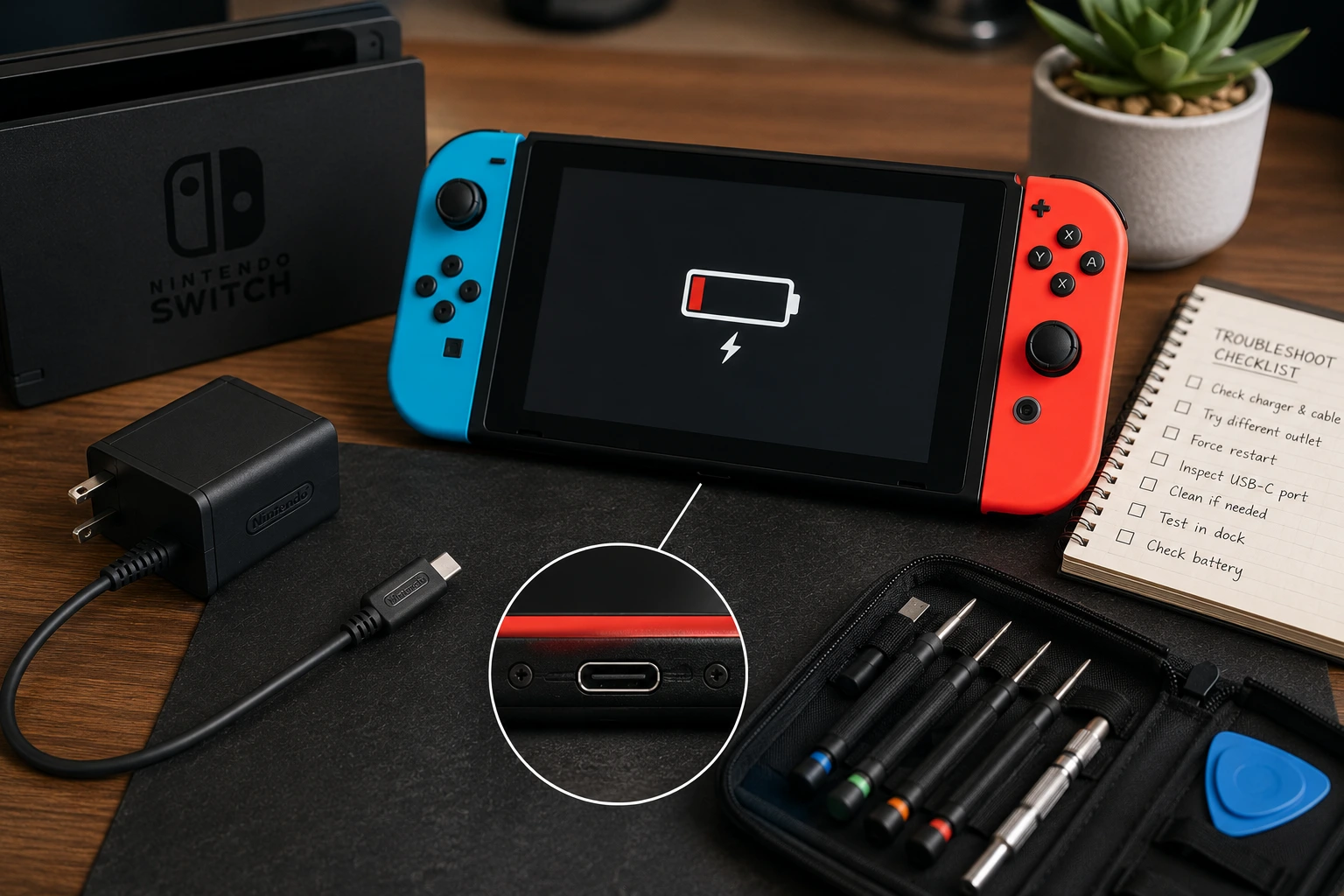
Lint, dust, and pocket debris pack into the Lightning or USB-C port over time. The buildup prevents the cable from making a solid connection with the pins inside. You’ll notice the cable feels loose, doesn’t click into place, or needs to be held at a specific angle to charge.
Use a wooden toothpick or a plastic spudger to gently scrape the inside of the port. Avoid metal tools, as they can short the connector pins. Shine a flashlight into the port and you’ll likely see a compressed layer of lint at the bottom.
In Albuquerque, we see this constantly because of the fine dust in the air. Phones carried in pockets or bags without port covers collect debris faster in dry, dusty conditions.
Water Damage
If your iPhone was exposed to water (dropped in a sink, caught in rain, or even exposed to heavy steam in a bathroom), you may see a “Liquid Detected” warning when you plug in the cable.
Do not try to charge the phone while this warning is active. Charging a wet port can short-circuit the pins and cause permanent damage to the charging IC on the logic board.
Let the phone dry completely in a well-ventilated area (not in rice). Wait at least 24 hours before trying to charge again. If the warning persists after the phone is dry, or if the phone won’t charge at all after water exposure, the port or the charging IC may be damaged. That requires a professional repair.
Why Does My iPhone Stop Charging at 80%?
If your iPhone consistently stops at 80% and won’t charge further, this is usually by design, not a malfunction.
Optimized Battery Charging
iOS includes a feature called Optimized Battery Charging (Settings > Battery > Battery Health & Charging > Optimized Battery Charging). When enabled, your iPhone learns your daily charging routine and pauses charging at 80% until it predicts you’ll need the phone soon.
For example, if you plug in your phone at 11pm and usually unplug at 7am, the phone charges to 80% quickly, pauses overnight, and completes the charge to 100% just before your alarm. This reduces the time the battery spends at 100%, which slows down long-term battery degradation.
If you need the full charge right now, you can either temporarily disable Optimized Battery Charging or press and hold the charging notification and select “Charge to Full Now.”
80% Charge Limit
Starting with iOS 17, Apple added a separate “80% Limit” option (Settings > Battery > Battery Health & Charging > Charging Optimization > 80% Limit). When selected, the phone intentionally caps at 80% every time and never charges above that threshold.
If your phone stops at 80% consistently, check this setting first. If “80% Limit” is selected, switch it to “Optimized Battery Charging” or “None” to allow full charges.
Thermal Throttling
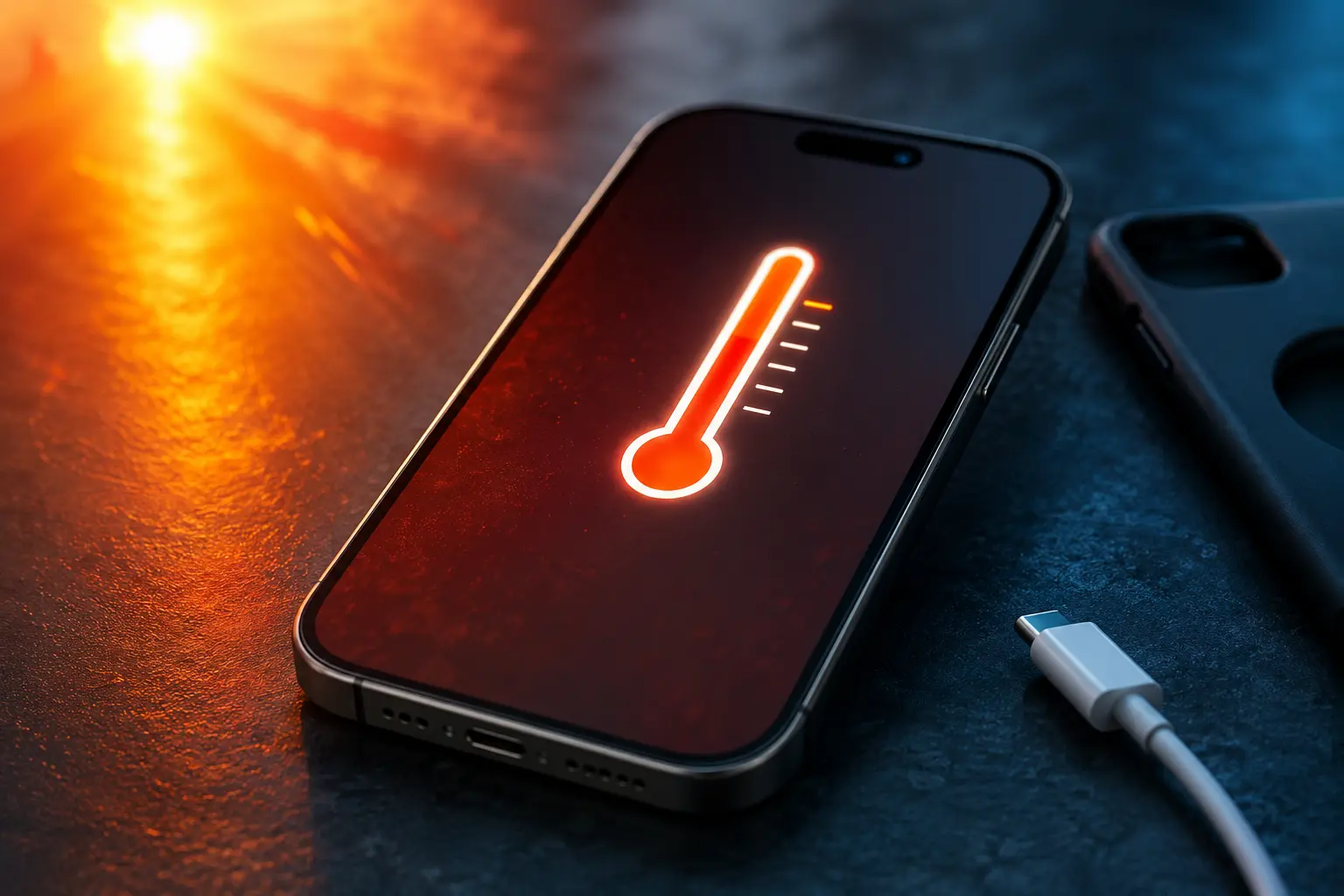
If the phone is hot (from heavy use, direct sunlight, or a warm environment), iOS will pause or slow charging above 80% to protect the battery from heat damage. You’ll notice the phone charges to 80% normally, then either stops or trickles extremely slowly.
The fix: let the phone cool down. Remove the case, move it out of direct sunlight, and stop using it while charging. Once the temperature drops, charging will resume at normal speed.
Software Problems That Prevent Charging
Occasionally, a software glitch prevents the phone from recognizing that it’s plugged in. Updating to the latest iOS version (Settings > General > Software Update) can fix this.
If the phone is too dead to update, connect it to a computer and update through Finder (Mac) or iTunes (Windows). In rare cases, a corrupted iOS installation needs to be restored entirely, which erases the phone.
Battery Health Is Degraded
Go to Settings > Battery > Battery Health & Charging. If Maximum Capacity is below 80%, the battery has significantly degraded. Symptoms include the phone dying at 20% or 30%, charging very slowly, or the phone getting unusually hot while charging. A degraded battery needs to be replaced. For a full breakdown of battery drain causes and fixes, our iPhone battery draining fast guide covers everything.
When the Charging Port Needs Replacing
If cleaning doesn’t fix the issue, and different cables and adapters don’t help either, the charging port assembly itself may be damaged. Bent pins, corroded contacts, or a cracked connector housing all require the port to be replaced.
Charging Repairs at Our Shop
Charging port issues are one of the top three repairs we do at our Albuquerque location, right behind screen replacements and battery swaps. We start with a free diagnostic to determine whether the problem is debris in the port (cleaned for free), a failing port (replacement takes about 30 minutes), or a board-level charging IC issue (micro soldering repair done in-house).
All iPhone repairs start with a no-cost assessment, so you know exactly what’s wrong before any work begins. Get in touch here.