


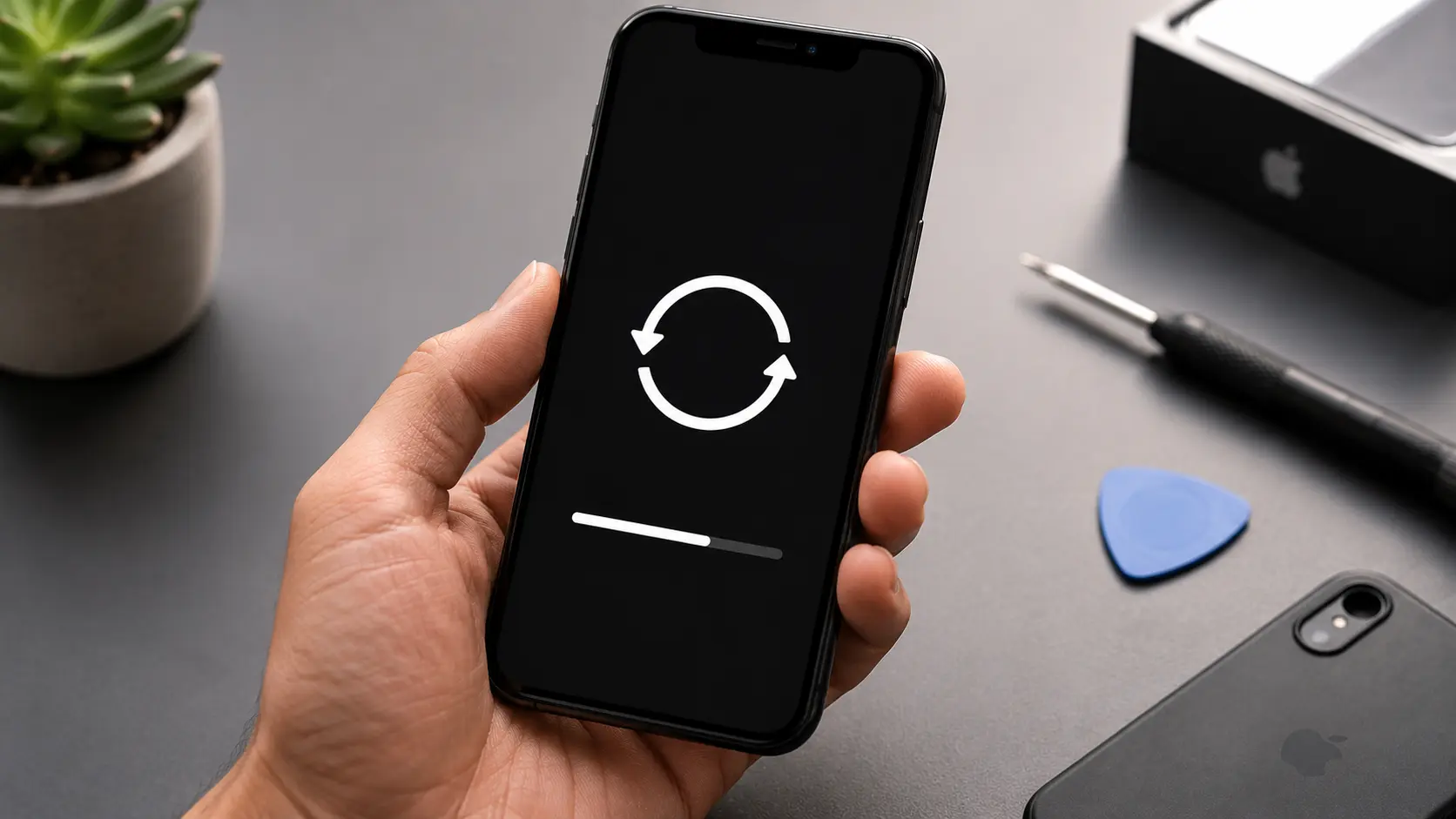
When You’d Want to Factory Reset
A factory reset erases everything on your iPhone and returns it to the state it was in when it came out of the box. The most common reasons to do this: you’re selling or giving the phone to someone else, you’re trading it in toward a new device, you’re bringing it to a repair shop and want your data wiped first, or the phone has a persistent software issue (freezing, crashing, boot loops) that regular troubleshooting hasn’t fixed.
Before you reset, there’s one critical step: back up your data. If you skip the backup, everything is gone permanently. Our guide on how to back up your phone before a repair covers iCloud, computer, and direct transfer methods.
Step 1: Back Up Your iPhone
Go to Settings > [Your Name] > iCloud > iCloud Backup > Back Up Now.
If you prefer backing up to a computer, connect your iPhone to a Mac or PC. On Mac (Catalina or later), open Finder. On Windows or older Macs, open iTunes. Select your iPhone and click “Back Up Now.”
Wait for the backup to finish completely before moving on. A partial backup is as good as no backup.
Step 2: Turn Off Find My iPhone
This is the step people skip, and it causes real problems afterward. Find My iPhone is tied to Activation Lock. If you factory reset without turning off Find My first, the phone will ask for your Apple ID and password during setup. Anyone you sell or give the phone to won’t be able to use it without your credentials. Repair technicians also need Find My disabled to test the phone after a repair.
How to Turn Off Find My iPhone
Go to Settings > [Your Name] > Find My > Find My iPhone. Toggle “Find My iPhone” to off. Enter your Apple ID password when prompted. If you’re also signed into an Apple Watch or AirPods, turning off Find My on the iPhone may prompt you about those devices as well.
If You Can’t Access the Phone’s Screen
If the screen is broken or the phone is unresponsive, you can turn off Find My remotely. Go to iCloud.com from any browser, sign in with your Apple ID, click “Find My,” select the device, and click “Remove from Account.” This disables Activation Lock without needing to interact with the phone.
You can also use the Find My app on another Apple device (Mac, iPad, another iPhone) signed into the same Apple ID. Open the app, select the device, and tap “Remove This Device.”
If You Forgot Your Apple ID Password
Go to iforgot.apple.com and follow the steps to reset your password. You’ll need access to your trusted phone number or email. Once the password is reset, use it to turn off Find My through the phone or iCloud.com.
If you can’t recover your Apple ID at all (lost access to the email and phone number), contact Apple Support directly. They can help verify your identity and remove Activation Lock, but the process takes time and requires proof of purchase.
Step 3: Sign Out of iCloud and Apple ID
Go to Settings > [Your Name] > scroll to the bottom > Sign Out. Enter your Apple ID password when prompted. Choose whether to keep a copy of your data on the phone (doesn’t matter since you’re about to erase it) and tap Sign Out.
If you already turned off Find My in the previous step, signing out should be straightforward. If you skipped that step, the sign-out process will ask you to turn off Find My as part of signing out.
Step 4: Erase the iPhone
Go to Settings > General > Transfer or Reset iPhone > Erase All Content and Settings.
Your phone will ask for your passcode, then your Apple ID password (if you haven’t already signed out of iCloud). Confirm the erase.
The process takes a few minutes. When it’s done, the phone will restart and show the “Hello” setup screen, which means the reset is complete.
Step 5: Unpair Apple Watch and Other Devices
If you have an Apple Watch paired to your iPhone, unpair it before the reset. Open the Watch app on your iPhone, tap your watch, tap the “i” icon, and select Unpair Apple Watch. This automatically backs up the watch data to your iPhone.
Factory Reset Without a Passcode
If your iPhone is locked and you’ve forgotten the passcode, you can still reset it using a computer.
Connect the iPhone to a Mac or PC. Put the phone into Recovery Mode (the button combination varies by model, so check Apple’s support page for your specific iPhone). When the Recovery Mode screen appears on the phone, your computer will show an option to Restore. Click it, and the phone will be erased and updated to the latest iOS version.
Resetting Before a Repair Visit
If you’re bringing your iPhone to our Albuquerque shop for a screen replacement, battery swap, or other repair, you don’t necessarily need to factory reset before coming in. We only need Find My disabled and the passcode available for display and touch testing after the repair is complete.
That said, if you prefer to wipe your data for privacy, go ahead and reset. We can test the hardware without your personal data on the phone. Either way, screen replacements are covered by our Lifetime Limited Warranty.