


How to Tell If Your Console's Storage Is Going Bad
Game consoles use internal storage drives (SSDs in current-gen, HDDs in older ones) that wear out over time. When storage starts failing, the symptoms can look like software bugs or network problems, which makes them easy to misdiagnose. Here are the signs that point specifically to a storage issue.
Sign 1: Games Take Much Longer to Load
If a game that used to load in 10 seconds now takes 30 or 40, and this happens consistently across multiple games (not just one), the storage drive is struggling to read data. SSDs degrade as the memory cells wear out from repeated write cycles, and read speeds drop noticeably before the drive fails completely.
On older consoles with HDDs (PS4, Xbox One), clicking or grinding sounds during load screens are a clear mechanical failure sign.
Sign 2: Games Crash or Close Unexpectedly
If games crash mid-play with error codes referencing data or storage, or if the console kicks you back to the home screen without warning, the drive may be returning corrupted data to the game engine. This is different from a game-specific bug because it happens across multiple titles.
Try rebuilding the database first. On PS5: boot into Safe Mode (hold power for two beeps) and select "Rebuild Database." On Xbox: go to Settings > System > Console Info > Reset Console > Reset and Keep My Games & Apps. If crashes continue after the rebuild, the drive itself is the problem.
Sign 3: Save Files Are Corrupted
Corrupted save files (you load a game and it says the save data is damaged or missing) are one of the strongest indicators of storage failure. Game saves are small files written frequently to the drive, and they're often the first casualties when a drive starts producing write errors.
If you lose saves once, it could be a software glitch. If it happens repeatedly across different games, the storage is failing.
Sign 4: Downloads Fail or Stall Repeatedly
When game downloads or updates fail partway through, stall at a specific percentage, or complete but then report the file is corrupted, the drive may not be writing data correctly.
Rule out your network first (test on another device). If downloads work fine on your phone or computer but fail on the console, the console's storage is the likely culprit.
Sign 5: The Console Takes Forever to Boot
A console that used to boot in 15 seconds and now takes a minute or longer, or one that gets stuck on the startup screen intermittently, is likely reading its system files from a degrading drive. The operating system loads from the same storage drive as your games, so when the drive slows down, everything slows down.
What to Do About Failing Storage
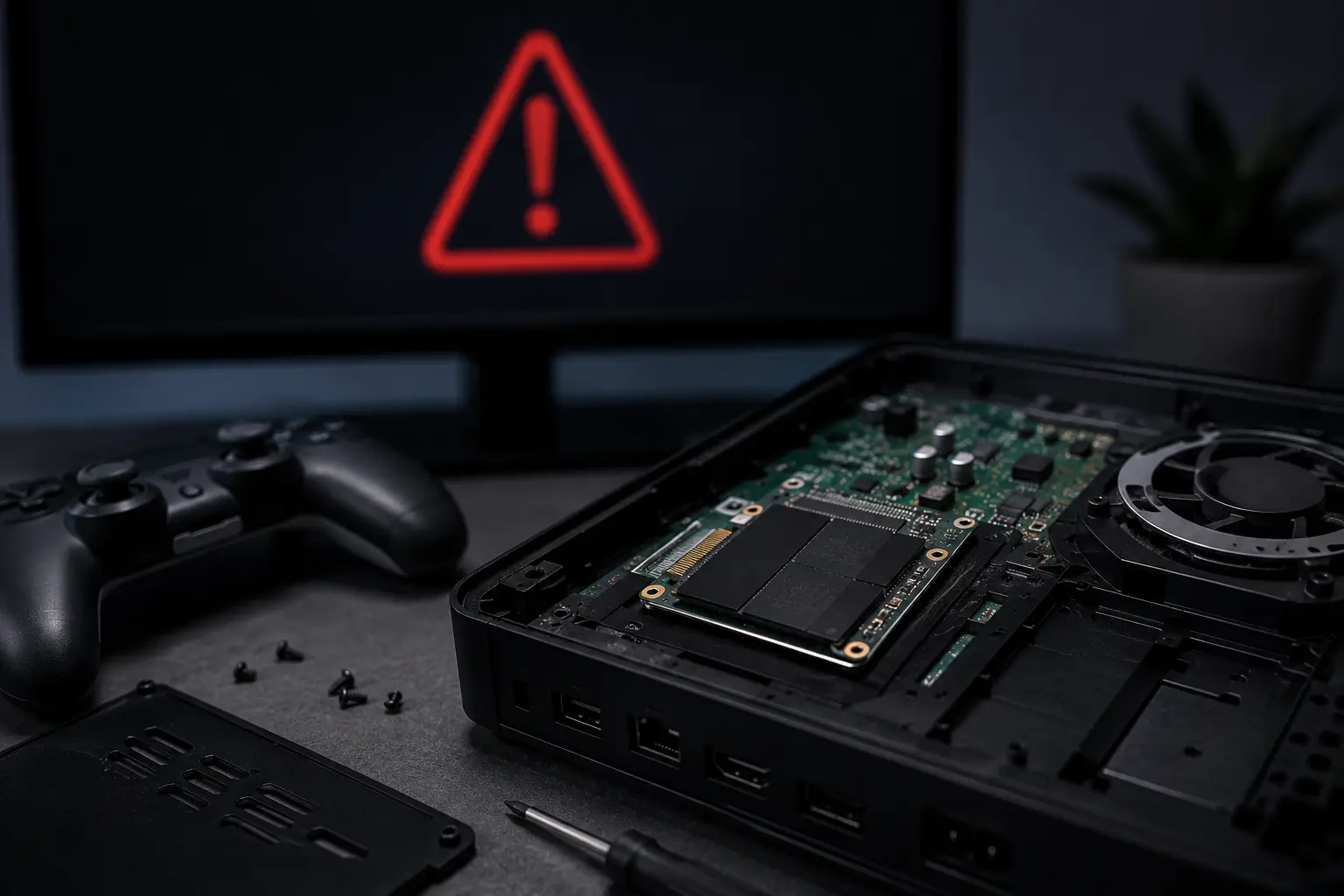
On PS5 and Xbox Series X/S, the internal SSD is soldered or proprietary. Replacement requires opening the console and either replacing the drive module or reflowing the storage chip, depending on the model.
On PS4 and Xbox One (HDD-based), storage replacement is more straightforward since these use standard 2.5-inch SATA drives. You can upgrade to an SSD at the same time, which improves load times and reliability.
On Nintendo Switch, the internal storage is eMMC (soldered to the board). If it fails, the chip needs to be replaced via micro soldering. Most Switch owners can extend their storage life by installing games to a microSD card instead of internal storage.
Console Storage Repair in Albuquerque
At our game console repair shop, we diagnose and replace failing storage on PS4, PS5, Xbox, and Nintendo Switch. For PS4 and Xbox One, we can upgrade the HDD to a faster SSD during the replacement. For current-gen consoles and Switch, we handle the board-level soldering in-house.
If your console is showing any of the signs above, bring it in for a free diagnostic before the drive fails completely and you lose your save data. For other common console issues, check our PS5 troubleshooting guide and our full console repair breakdown.