


Why Your iPhone Battery Isn’t Lasting Like It Used To
If your iPhone barely makes it through the day, or if it shuts off at 20% without warning, something is draining the battery faster than it should. The cause is usually one of three things: software behavior (apps consuming power in the background), settings that burn through charge faster than necessary, or a physically degraded battery that needs replacing.
Here’s how to diagnose which one it is and what to do about it.
Check Your Battery Health First
Go to Settings > Battery > Battery Health & Charging. Look at the Maximum Capacity number.
100% means the battery is new or near-new. 90% to 99% is normal wear for a phone that’s 6 months to a year old. 80% to 89% means noticeable degradation; you’ll feel shorter battery life, especially on demanding days. Below 80% means the battery is significantly degraded. Apple considers this the threshold where the battery should be replaced. Your phone may also display a “Service” message at this point.
If your Maximum Capacity is below 85% and you’re unhappy with battery life, no amount of settings tweaking will bring it back to what it was. The battery’s chemical cells have physically worn out, and replacement is the fix.
Software Causes: What’s Draining Your Battery
Check App Battery Usage
Go to Settings > Battery and scroll down to the app usage list. This shows which apps consumed the most battery over the last 24 hours or 10 days.
Look for apps with high background activity. If an app you rarely open is consuming 10% to 20% of your battery, it’s running in the background excessively. Common offenders include social media apps (Facebook, Instagram, TikTok), navigation apps (Google Maps running location in the background), email apps with push notifications enabled, and news or weather apps that refresh constantly.
Background App Refresh
Go to Settings > General > Background App Refresh. This feature lets apps refresh their content when you’re not using them. Turning it off entirely, or selectively for apps you don’t need updated in real time, can noticeably reduce battery drain.
You don’t need Instagram refreshing in the background 50 times a day. It will load fresh content when you open it.
Location Services
Go to Settings > Privacy & Security > Location Services. Review which apps have access to your location and how often.
Change apps from “Always” to “While Using” wherever possible. Many apps request “Always” access to your location but don’t need it. A restaurant app doesn’t need to know where you are 24/7. A weather app can update when you open it rather than tracking you continuously.
Push Email
If your email is set to Push (Settings > Mail > Accounts > Fetch New Data), your phone maintains a constant connection to the mail server, waiting for new messages. Switching to Fetch (checking for new emails every 15 or 30 minutes) reduces the persistent connection and saves battery.
For most people, a 15-minute fetch interval is fast enough. You’ll still get emails promptly without the battery cost of real-time push.
Settings That Drain Battery Faster
Screen Brightness
The display is the single biggest power consumer on your phone. If brightness is maxed out, your battery drains significantly faster. Turn on Auto-Brightness (Settings > Accessibility > Display & Text Size > Auto-Brightness) and let the phone adjust based on ambient light.
Always-On Display
iPhone 14 Pro and later models have an Always-On Display feature that keeps the screen dimly lit even when locked. This is convenient but uses battery. If battery life matters more, turn it off at Settings > Display & Brightness > Always On Display.
5G Auto vs 5G On
5G uses more power than LTE. If your iPhone is set to “5G On” (Settings > Cellular > Cellular Data Options > Voice & Data), it will prioritize 5G even when LTE would be fast enough. Switching to “5G Auto” lets the phone use LTE when 5G doesn’t offer a meaningful speed improvement, saving battery in the process.
Widgets and Live Activities
Home screen widgets that update frequently (weather, stocks, sports scores, calendar) consume background resources. Live Activities (the persistent notifications for deliveries, sports games, timers) also add to battery usage. Remove widgets you don’t actively use and end Live Activities when you’re done with them.
Habits That Extend Battery Life
Charge Between 20% and 80%
Lithium-ion batteries experience the most stress at the extremes: below 20% and above 80%. Repeatedly draining to 0% or charging to 100% accelerates chemical degradation. Keeping your charge between 20% and 80% for daily use extends the battery’s overall lifespan.
iOS has a built-in Optimized Battery Charging feature (Settings > Battery > Battery Health & Charging > Optimized Battery Charging) that learns your routine and delays charging past 80% until you need the phone. Leave this enabled.
Avoid Extreme Temperatures
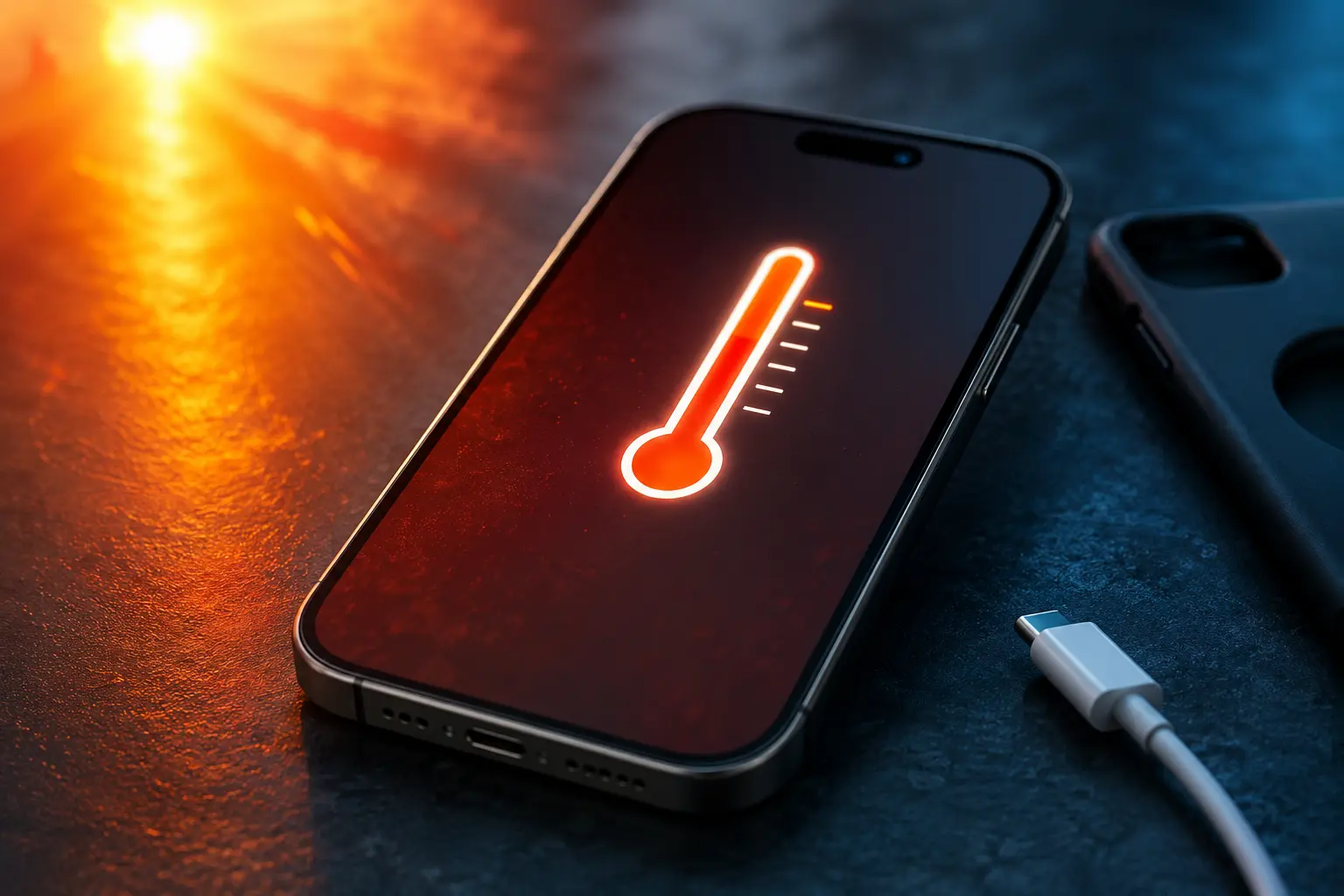
Heat is the primary enemy of lithium-ion batteries. Using your phone in direct sunlight, leaving it on a car dashboard, or charging it while it’s in a hot case all contribute to faster battery degradation. Cold temperatures temporarily reduce battery performance (the phone may shut off unexpectedly in freezing conditions) but don’t cause permanent damage the way heat does.
Use Wi-Fi Over Cellular When Available
Wi-Fi uses less power than cellular data. When you’re at home, at work, or at any location with a known Wi-Fi network, connecting to Wi-Fi reduces the power your phone’s cellular radio consumes.
When to Replace the Battery
If your Maximum Capacity is below 80%, the phone shuts off unexpectedly at moderate charge levels, or the phone gets unusually warm during normal use, the battery has reached the end of its useful life. Software optimizations and habit changes can squeeze out a bit more time, but the fundamental issue is a worn-out battery.
Battery replacement brings the phone back to near-original battery life and is significantly cheaper than buying a new phone. If the rest of the hardware is in good shape, a new battery can extend the phone’s useful life by 2 to 3 more years.
Battery Replacement at Our Shop
Battery replacements are one of the most common repairs we do at our Albuquerque iPhone repair shop, right behind screen replacements. The swap takes about 20 to 30 minutes and comes with a warranty.
If you’re not sure whether your battery needs replacing or if a settings adjustment would solve the problem, bring it in for a free diagnostic. We’ll check the battery health and let you know if replacement is the right call.