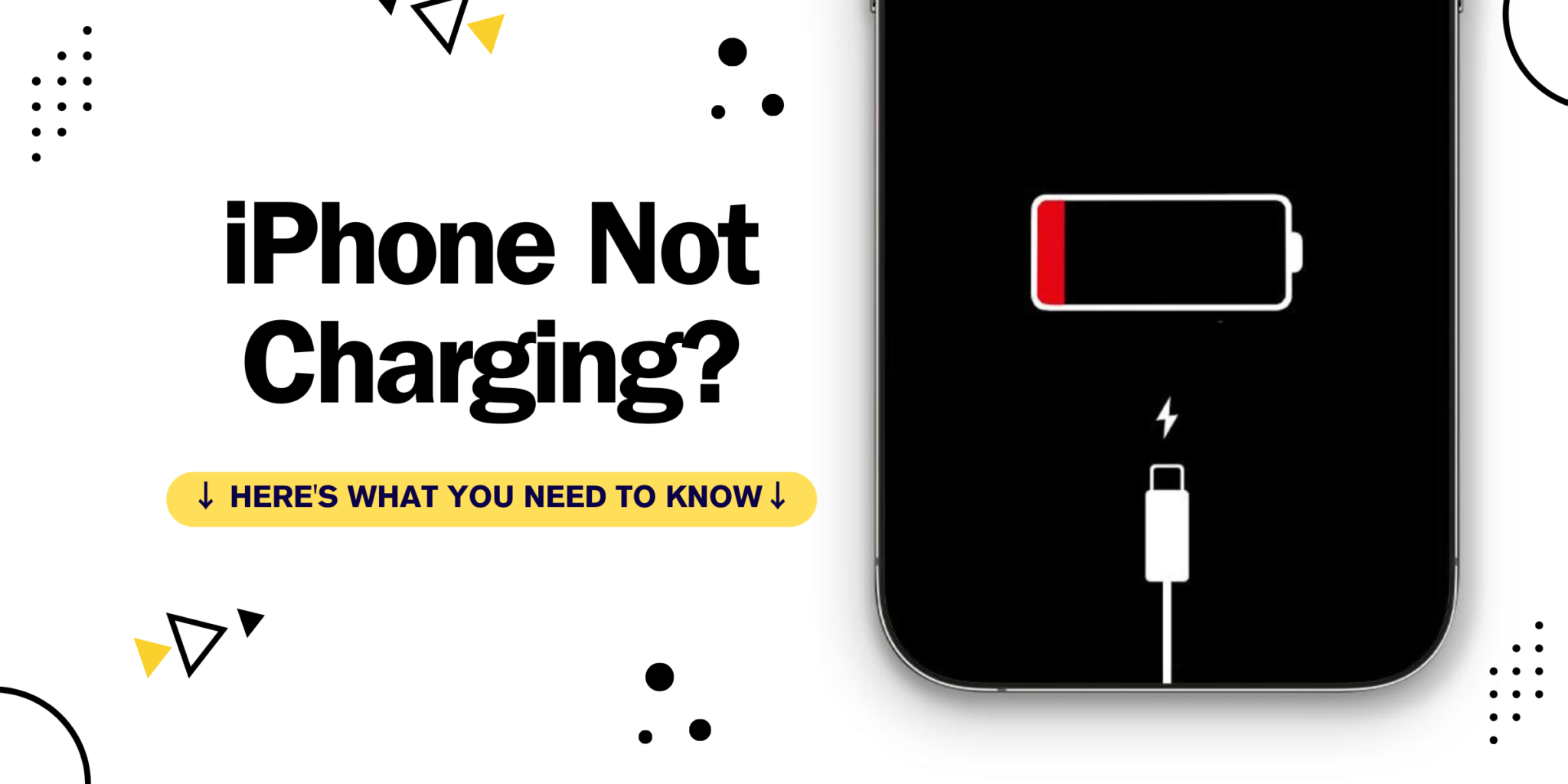
Your iPhone battery shows empty. You plug in the cable. Nothing happens. Your phone holds everything: work emails, family photos, banking apps, and your calendar.
Most charging problems have simple fixes. The most common causes are a faulty cable, debris in your port, or a software glitch. Test a different cable and power source first.
This guide provides solutions for each charging problem. You’ll learn which issues you can fix yourself and when to seek professional repair in Albuquerque.
Quick Answer
If your iPhone won’t charge, test a different cable and power source first. Clean your charging port with a wooden toothpick. Force restart your device. If the problem persists, your port may be damaged, or your battery may need replacement.
Quick 3-Question Diagnostic
Question 1: Does the charging symbol appear on screen?
- YES → Software or slow charging issue
- NO → Continue to Question 2
Question 2: Does your cable work with other devices?
- YES → Your port has a problem
- NO → Continue to Question 3
Question 3: Does a different cable charge your iPhone?
- YES → Replace your original cable
- NO → Port cleaning or professional help needed
8 Common Reasons Your iPhone Won't Charge
1. Faulty Cable or Adapter
Lightning cables experience daily wear from bending and pulling. Internal wire damage happens even when the outside looks fine. Check for fraying near connectors or bent pins.
2. iPhone Charging Port Not Working
Lint and pocket debris pack into your port over time. This blocks a proper cable connection. Shine a flashlight inside to check for accumulated material.
3. Software Glitch
iOS can freeze or malfunction, preventing charge recognition. A restart often resolves software-related charging problems.
4. Dead Wall Outlet
Breakers trip or outlets fail. Computer USB ports in sleep mode won’t charge your device.
5. Battery Hardware Failure
Batteries degrade after 500 charge cycles. Check Settings > Battery > Battery Health. A capacity below 80% usually means replacement time.
6. Charging Port Damage
Physical damage from drops or forcing cables bends internal pins. Port damage requires professional repair.
7. Liquid Detected in iPhone Charging Port
iPhones detect moisture and stop charging to prevent damage. Allow the phone to dry completely before charging.
8. Optimized Battery Charging
iOS learns your routine and stops at 80% to extend battery lifespan. Check Settings > Battery > Battery Health & Charging to disable for immediate full charging. iPhones also pause at 80% when overheating.
Add Your Heading Text HereCommon Charging Problems Explained
When Your iPhone Shows Charging but Won’t Actually Charge
Your iPhone displays the charging symbol, but the battery percentage doesn’t increase. The port may have debris blocking a full connection. The cable might make partial contact without delivering adequate power. Clean the port, try a different cable, and check your adapter wattage. Background apps could drain faster than charging replenishes. Close all apps and try Airplane Mode while charging.
Charging Issues After iOS Updates
Software updates sometimes introduce charging bugs. Recent iOS 18 updates caused issues for some iPhone 14, 15, and 16 users. Force restart your iPhone after major updates. Check Settings > General > Software Update for patches. Most problems resolve with a restart.
The 80% Charging Limit Explained
iOS Optimized Battery Charging delays charging past 80% to protect battery health. Check Settings > Battery > Battery Health & Charging to disable this feature. High temperatures also trigger the 80% pause. Remove your case and avoid direct sunlight while charging.
When Wireless Charging Works, But Cable Doesn’t
If wireless charging works but cables don’t, the port has a problem. The port may have debris, damaged pins, or corrosion. Clean thoroughly or seek professional repair.
The Accessory Not Supported Error
This message means your cable lacks Apple certification or has failed. Use Apple-certified cables marked “Made for iPhone.” Sometimes this error appears due to port debris. Clean your port first.
When Professional Repair Makes Sense
DIY solutions work for most charging issues, but some problems need expert diagnosis. Contact professionals if your iPhone charges only at certain angles, has visible port damage, or the battery health is below 80%. Hardware issues sometimes disguise themselves as charging problems. Failing logic boards require diagnostic equipment.
ABQ Phone Repair & Accessories offers an A+ BBB rating and over 8 years of local service near Coronado Center. Certified technicians provide lifetime warranties on all repairs.
Preventing Future Charging Problems
Unplug by gripping the connector, not yanking the cable. Replace worn cables immediately. Clean your port monthly with compressed air. Don’t charge in extreme temperatures. Use certified accessories only.
What NOT to Do
Don’t use damaged cables. Don’t force the cable. Don’t use unofficial chargers. Don’t shake your iPhone. Don’t ignore accessory warnings. Don’t clean ports with metal objects.
Get Your iPhone Fixed.
Most iPhone charging problems stem from worn cables, dirty ports, or software glitches. Start with simple solutions: test different cables, clean your port, and restart your device. These steps resolve most issues quickly.
Know when to stop DIY attempts. Visible port damage, repeated failures, or phones that won’t power on need professional attention. For professional repair in Albuquerque, ABQ Phone Repair & Accessories provides same-day service with lifetime warranties.