Your PlayStation 4 powers on with the blue light turning white, but your TV screen stays black. This problem affects thousands of gamers and typically has simple solutions.
Most display failures occur due to faulty cables, incorrect TV settings, or resolution mismatches. Hardware damage, like bent port pins or a failed encoder chip, causes more serious issues. This guide shows you every solution from five-second fixes to identifying when professional repair becomes necessary.
Quick Answer
If your PS4 won’t connect to your TV, check three things: verify the cable clicks firmly into both ports, cycle through all TV inputs, and try a different cable. If these steps fail, boot into Safe Mode to reset display settings to 480p, which works with all TVs. Hardware problems like damaged ports need professional repair.
Match Your Symptom
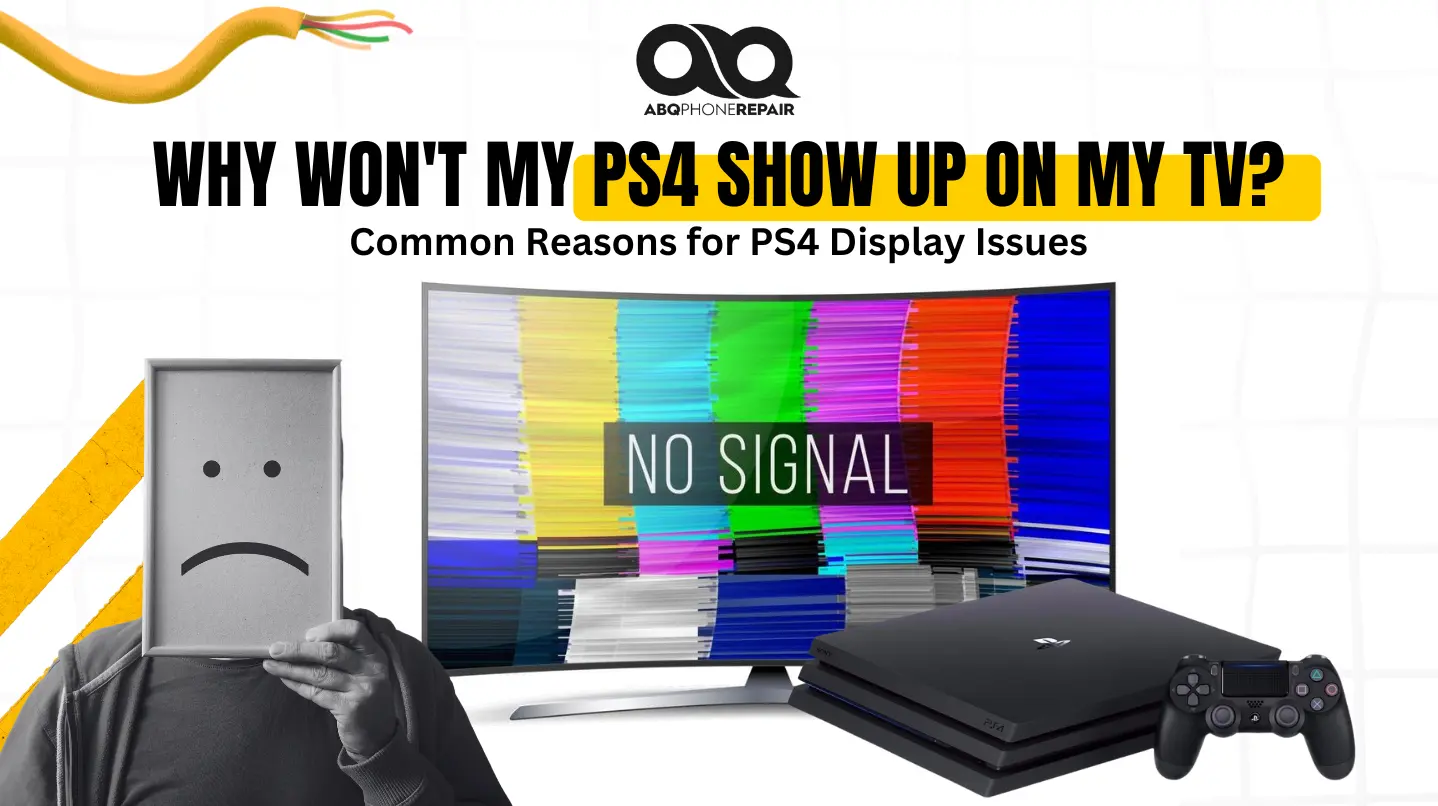
TV shows “No Signal” – Check the cable seating and TV input first. This indicates a connection failure rather than a settings issue.
Sound works through the controller, but no picture appears – Your PS4 is functioning, but the video isn’t reaching the screen. Try the Safe Mode reset.
Black screen with no sound or picture – This suggests a resolution mismatch, HDCP conflict, or hardware failure. Safe Mode troubleshooting determines the cause.
Works on a different TV but not yours – Resolution compatibility differs between TVs. Your TV doesn’t support your PS4’s current output format.
Picture flickers or cuts out randomly – This indicates a loose port, failing cable, or poor HDMI handshake. It’s a physical connection problem.
Troubleshooting Steps
1. Verify Cable Connection and TV Input
Connection problems cause the majority of display failures. Push the cable firmly into both the PS4 HDMI OUT port and your TV’s HDMI input until you hear a click.
Use your TV remote to cycle through every input. Press Input or Source repeatedly to check all ports. TVs sometimes switch inputs after power outages. Test your cable with another device like a Blu-ray player. If other devices also fail with that cable, internal wire damage has occurred.
2. Power Cycle Both Devices
Turn off your PS4 by holding the power button until you hear two beeps. Turn off your TV and unplug both devices from the wall. Wait 60 seconds. Plug the TV in first, power it on, then connect and power on your PS4. This forces a fresh HDMI handshake.
3. Reset Display Settings in Safe Mode
Boot into Safe Mode, which outputs at 480p. Turn off your PS4 completely. Press and hold the power button for seven seconds until you hear a second beep. Connect your controller via USB and press the PS button. Select “Change Resolution” and choose 720p.
4. Test a Different HDMI Port on Your TV
Individual ports can fail while others work. Unplug your cable and connect to a different port. Switch your TV input to match. If your PS4 displays after switching, the original port has failed.
5. Try a Different Display Device
Connect your PS4 to another TV or monitor. This determines whether your PS4 or TV has the problem. If your PS4 displays on a different screen, your original TV has issues.
6. Disable HDCP Protection
HDCP causes problems with older TVs. Access Settings > System > HDCP and disable it. If you can’t see the display, boot Safe Mode and look for HDCP options. Note that Blu-ray movies won’t play with HDCP disabled.
7. Update System Software
Sony releases updates that fix display bugs. Navigate to Settings > System Software Update if you can access menus. For PS4s with no display, download the update from PlayStation’s website onto a USB drive, boot Safe Mode, and select “Update System Software.”
8. Inspect Ports for Damage
Use a flashlight to look inside both your PS4 and TV HDMI ports. Check for bent pins or dust. Use compressed air to blow out debris. A loose or wobbly connection indicates solder joint failure requiring professional repair.
9. Test With a Different Cable
Swap your cable with a known working cable. Internal wire breaks happen from repeated bending. Use HDMI 1.4 or newer cables.
10. Factory Reset (Last Option)
Back up your games before proceeding. Factory reset erases everything. Navigate to Settings > Initialization > Initialize PS4 and select “Full.” Only attempt this after exhausting other options.
Advanced Solutions
PS4 Works on Some TVs but Not Others
Resolution differences cause this. Connect to a working TV, go to Settings > Sound and Screen > Video Output Settings, and select 720p.
Audio Works, But No Video Appears
Boot Safe Mode to test. If Safe Mode shows a picture, adjust the resolution. If Safe Mode also fails, the port or encoder chip needs professional repair.
HDMI Handshake Failures
HDMI handshake is an automatic negotiation between devices. Power cycling forces fresh attempts. Persistent failures indicate incompatible HDCP versions.
PS4 Pro and Slim-Specific Issues
PS4 Pro supports 4K, but some TVs have HDR handshake problems. Force 1080p in Safe Mode if your Pro won’t display. PS4 Slim uses identical troubleshooting as the original model.
When Professional Repair Makes Sense
Visible bent pins require professional straightening. Loose ports that wobble need solder joint repair. If Remote Play works but HDMI doesn’t on any TV, the port or encoder chip has failed.
At ABQ Phone Repair & Accessories in Albuquerque, we repair PS4 HDMI ports, replace encoder chips, and diagnose motherboard issues. We offer same-day service with lifetime warranties near Coronado Center off Interstate 40. Professional chip replacement typically costs less than buying a replacement PS4.
Setup and Prevention
Connect your HDMI cable to the “HDMI OUT” port on your PS4’s rear panel. Connect the other end to any available TV HDMI port and note the port number. Power on your TV, select the matching input using your remote, then power on your PS4. Wait for the blue light to turn white, which indicates a successful boot.
Prevent future problems by unplugging cables from the connector head, never pulling on the cable itself. Keep HDMI ports dust-free by using compressed air monthly. Avoid moving your PS4 while it’s powered on. Replace cables every 2-3 years as a preventive measure.
Frequently Asked Questions
Why does my PS4 say “no signal”?
“No signal” means your TV doesn’t detect any device connected to that input. Check the cable connections at both ends, verify the TV input selection matches your cable’s port number, and test with a different cable to eliminate cable failure.
How do I reset PS4 display settings without seeing the screen?
Hold the power button for seven seconds until the second beep activates Safe Mode at 480p resolution. Connect your controller to the PS4 via a USB cable and select “Change Resolution” from the Safe Mode menu.
Can a bad cable cause a black screen?
Yes, internal wire damage prevents signal transmission while the cable exterior looks normal. Cables fail from repeated bending, pinching, or poor manufacturing quality. Testing with a different cable eliminates this common failure point.
How do I know if my PS4 HDMI port needs repair?
Signs include loose, wobbly ports when inserting cables, visible bent pins inside the port, or complete failure across all TVs and cables. If Remote Play works on other devices but no TV connection works, the port has failed and needs professional repair.
What’s the average cost for PS4 HDMI port repair in Albuquerque?
HDMI port repair typically costs $80-120, including diagnostic testing, replacement parts, labor, and warranty coverage. Compare this to $300-400 for a used PS4 replacement console.
What Not to Do
Never force cables into ports if they don’t slide in smoothly. Don’t use metal objects like paperclips to clean ports, as metal conducts electricity and scratches delicate contacts. Avoid cheap, unbranded cables under $5 that lack proper shielding. Don’t shake or hit your console when frustrated, as physical impact loosens internal connections. Never attempt to straighten bent pins yourself without proper training, tools, and magnification equipment.
Get Your PS4 Fixed
Start with cable and TV input checks, as these steps resolve most connection problems in under five minutes. Power cycling and Safe Mode resolution reset fix the majority of settings-related failures. These DIY troubleshooting steps handle a significant portion of display issues without requiring professional intervention.
Know your limits when dealing with hardware problems. Damaged ports, loose internal connections, or encoder chip failures need professional diagnosis and repair equipment. Continuing troubleshooting attempts with damaged hardware worsens the problem and increases eventual repair costs.
For professional PS4 repair in Albuquerque, ABQ Phone Repair & Accessories provides same-day diagnostics and repair services with lifetime warranties. Our experienced technicians handle all PS4 models, including Slim and Pro versions.