Restoring your iPhone from backup transfers all saved data back to your device. You can restore through iCloud (wireless during setup) or computer (using Finder or iTunes). Before starting, check your backup date, ensure enough storage space, and have your Apple ID password ready. iCloud restore takes 30 minutes to 3 hours depending on backup size and internet speed. Computer restore takes 15-60 minutes. Both methods erase current data on already-setup devices, requiring a factory reset first.
Understanding iPhone Backup Restore
Restoring from backup downloads your previously saved data – photos, apps, messages, contacts, and settings – back to your iPhone. This is essential when setting up a new device, recovering from data loss, or fixing software issues.
The restore process replaces everything currently on your iPhone with the backup contents. Any data added after the backup date will be lost unless separately backed up.
Before You Start the Restore
Taking a few preparatory steps prevents problems and ensures a smooth restore process.
Verify Your Backup Exists
Check that you have a recent backup. For iCloud, go to Settings > [Your Name] > iCloud > iCloud Backup. For computer backups, open Finder (Mac) or iTunes (Windows) and check under Manage Backups.
Check Storage and Requirements
Your backup must fit within your iPhone’s available storage. Check backup size in iCloud settings, then compare to available space in Settings > General > iPhone Storage. Have your Apple ID password ready, plus the backup password if your backup is encrypted.
For iCloud restore, ensure strong Wi-Fi throughout. For computer restore, have a working USB cable ready. Keep your iPhone charged or plugged in during restoration.
Method 1: Restore from iCloud Backup
This wireless method works best for new iPhones or when you don’t have access to a computer.
For New iPhones:
- Power on your new iPhone
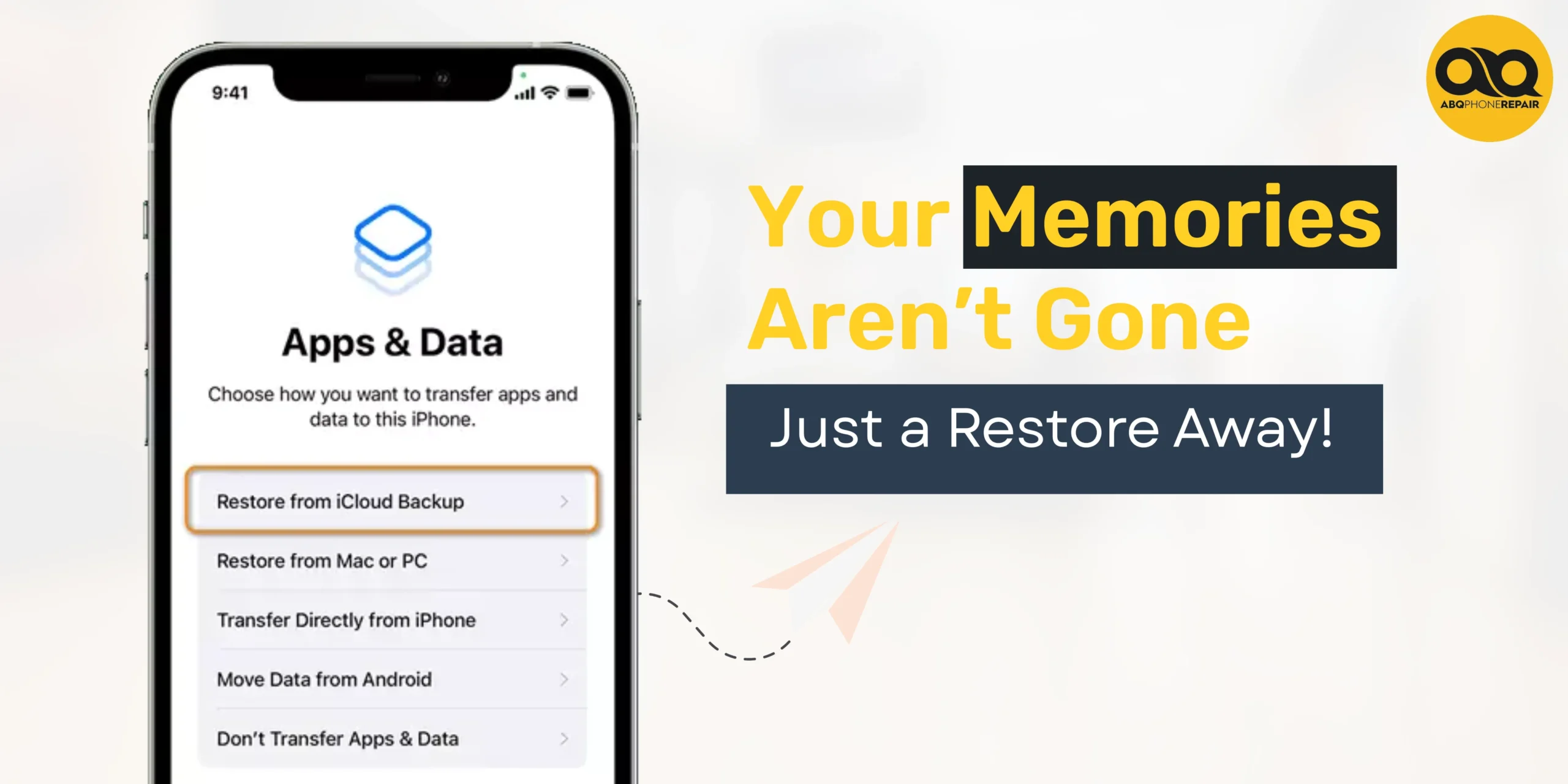
- Follow setup screens until you reach Apps & Data
- Tap “Restore from iCloud Backup”
- Sign in with your Apple ID and password
- Choose your backup from the list (check date and size)
- Wait for the progress bar to complete
- Stay connected to Wi-Fi throughout
For Already-Setup iPhones:
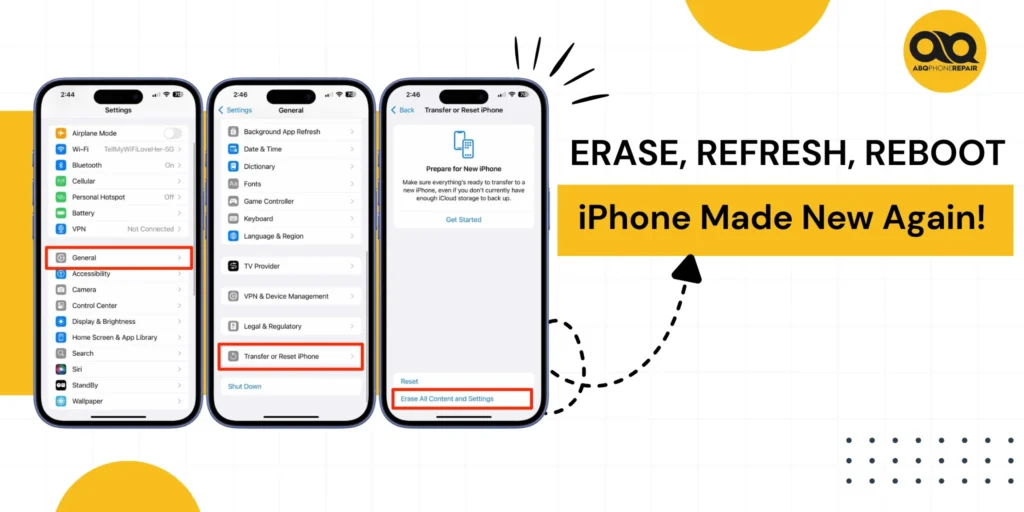
If your iPhone is already set up, you must erase all content first to access the restore option. Go to Settings > General > Transfer or Reset iPhone > Erase All Content and Settings. After erasing, follow the new iPhone steps above.
The progress bar shows estimated time remaining. Keep your iPhone connected to Wi-Fi and power. Disconnecting stops the process until you reconnect. After the main restore completes, apps and photos continue downloading in the background for several hours.
Method 2: Restore from Computer Backup
Use this method for faster restores or when you have a local backup on your computer.
Using Finder (Mac with macOS Catalina or later):
- Open Finder on your Mac
- Connect iPhone with USB cable
- Click on your iPhone in the sidebar under Locations
- Select the General tab
- Click “Restore Backup”
- Choose your backup from the list
- Click Restore and wait for completion
- Keep iPhone connected until sync finishes
Using iTunes (Windows or older Mac):
- Open iTunes on your computer
- Connect iPhone with USB cable
- Click the iPhone icon in the top-left corner
- Select Summary from the sidebar
- Click “Restore Backup”
- Choose your backup and click Restore
- Enter password if backup is encrypted
- Wait for process to complete
Your iPhone will restart after restoration. Keep it connected to your computer until the sync completes. Computer restores are generally faster than iCloud because they don’t depend on internet speed.
Choosing Between iCloud and Computer
Choose iCloud When: Setting up a new iPhone without a computer, have fast Wi-Fi, or prefer wireless convenience.
Choose Computer When: Need fastest restore, have slow internet, large backup, or encrypted data.
Computer backups include more data and don’t count against iCloud storage. iCloud offers convenience but depends on internet speed.
What Gets Restored
Included: Photos and videos, app data and settings, messages, ringtones, wallpapers, home screen layout, health data, device settings, and purchase history.
Not Included: Touch ID/Face ID (must reconfigure), Apple Pay cards (must re-add), paired Apple Watch (must re-pair), and email account passwords (may need to re-enter).
Third-party apps restore their data if they support iCloud sync. Some apps require signing in again after restore.
Troubleshooting Common Issues
Stuck on Estimating Time: Wait at least 30 minutes for large backups. If truly stuck, restart iPhone and try again. Ensure strong Wi-Fi signal.
Restore Failed: Lost connection or low battery can interrupt restores. Erase iPhone and start over. Try different Wi-Fi network or switch to computer restore.
Not Enough Storage: Backup is larger than iPhone capacity. Delete unnecessary data before backing up next time, or restore to phone with more storage.
Forgot Encrypted Password: No way to recover without password. Create new unencrypted backup going forward.
Software Version Too Old: Update iPhone’s software when prompted during restore, or manually through Settings > General > Software Update first.
How Long Will It Take?
iCloud Restore: 30 minutes to 3 hours depending on backup size and internet speed. Small backups (under 5GB) take 30-60 minutes. Large backups (20GB+) take 2-4 hours.
Computer Restore: 15-60 minutes regardless of size (much faster).
Background app downloads continue for hours after the main restore finishes.
After Restore Completes
Your iPhone restarts and shows the home screen, but apps continue downloading from the App Store automatically. Photos and media sync based on your settings.
Keep your iPhone connected to Wi-Fi and power overnight to let background downloads finish. Sign back into accounts that didn’t restore automatically. Reconfigure Touch ID or Face ID in Settings and re-add credit cards to Apple Pay.
Frequently Asked Questions
Can I restore iPhone without resetting it first? Only during initial setup of a new or newly erased iPhone. Already-setup phones must be erased first.
Will restore delete my current data? Yes, restoring replaces all current data with backup contents.
What if I don’t have a backup? You cannot restore without a backup. Set up as new and enable automatic iCloud backup immediately.
Can I restore to an older iOS version? No. Your iPhone must run the same or newer iOS version as the backup.
How do I cancel a restore in progress? For iCloud: Settings > iCloud > Backup > “Stop Restoring iPhone.” For computer: disconnect USB cable.
Why are some apps missing after restore? Apps incompatible with your iPhone or discontinued from the App Store won’t restore.
When You Need Professional Help
Sometimes restore issues indicate larger problems beyond software. If you’ve tried restoring multiple times and your iPhone still won’t work properly, the issue might be hardware-related rather than a backup problem.
Physical damage to storage components, battery issues, or screen problems won’t improve through software restores. If you’re experiencing persistent issues even after a successful restore, or if you need help recovering data from a damaged device that won’t complete a restore, professional diagnostics can identify the real cause.
If you’re in the Albuquerque area and experiencing persistent restore failures, ABQ Phone Repair & Accessories provides expert iPhone repair services. When software solutions like restoring from backup aren’t enough, experienced technicians can diagnose hardware issues and recover your important data.