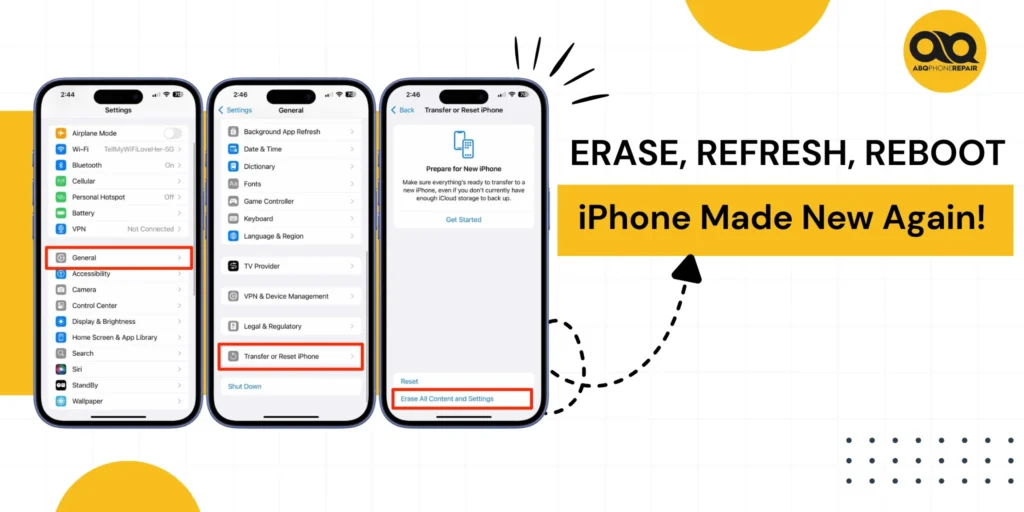
Factory resetting your iPhone erases all content and settings, returning it to original condition. You can reset through Settings (General > Transfer or Reset iPhone > Erase All Content and Settings), use physical buttons for locked devices, or reset remotely via iCloud. Before resetting, back up your data to iCloud or computer, disable Find My iPhone, and note your Apple ID password. A factory reset deletes photos, apps, messages, and passwords but keeps iOS version intact. The process takes 5-15 minutes depending on data amount.
What Is a Factory Reset?
A factory reset completely wipes your iPhone, removing all personal data, apps, settings, and accounts. This differs from a simple restart or soft reset, which only refreshes your device without deleting anything.
When You Need a Factory Reset:
- Selling or trading in your iPhone
- Giving your device to someone else
- Fixing persistent software problems
- Preparing for a new phone setup
- Removing all personal information
What Gets Deleted:
- All photos and videos
- Apps and app data
- Messages and call history
- Contacts and calendars
- Saved passwords and accounts
- Custom settings and preferences
- Downloaded music and files
Your iPhone’s operating system stays installed, so you’ll still have the same iOS version after the reset.
Before You Factory Reset
Taking these steps protects your data and prevents problems during the reset process.
Back Up Your Data
Connect to Wi-Fi and go to Settings > [Your Name] > iCloud > iCloud Backup > Back Up Now. This saves your photos, app data, and settings to the cloud. You can also connect your iPhone to a computer and use Finder (Mac) or iTunes (PC) to create a local backup.
If your iPhone screen is damaged or unresponsive, learn how to recover photos from a broken iPhone before attempting a reset to prevent permanent data loss.
Disable Find My iPhone
Open Settings > [Your Name] > Find My > Find My iPhone and toggle it off. You’ll need to enter your Apple ID password. This step is required for the reset to work properly.
Know Your Login Details
Write down your Apple ID and password. You’ll need these credentials to set up your iPhone after the reset or to restore from backup.
Remove Your Accounts
Sign out of iCloud, iTunes, and the App Store. Also unpair any Bluetooth devices like Apple Watch or AirPods.
Method 1: Reset Through Settings
This is the standard way to factory reset your iPhone when you have access to the device.
Step-by-Step Instructions:
- Open the Settings app
- Tap General
- Scroll down and select Transfer or Reset iPhone
- Tap Erase All Content and Settings
- Enter your passcode when prompted
- Enter your Apple ID password to confirm
- Tap Erase iPhone to begin
Your screen will go dark, and the Apple logo will appear. The process usually takes 10-15 minutes. Your iPhone will restart showing the setup screen when complete.
eSIM Note: You’ll be asked whether to erase or keep your eSIM. If you’re switching to a new phone, keep the eSIM. If selling your device, erase it. Contact your carrier to reactivate if needed.
Method 2: Reset With Physical Buttons
Use this method when your iPhone is frozen, unresponsive, or you’ve forgotten your passcode.
For iPhone 14 and Later
- Connect your iPhone to a computer
- Quickly press and release Volume Up
- Quickly press and release Volume Down
- Press and hold the Side button until recovery mode appears
- Open Finder (Mac) or iTunes (PC)
- Click Restore iPhone and confirm
For iPhone 7 Series
Hold Volume Down and Side buttons together until recovery mode appears, then restore via computer.
For iPhone 6s and Earlier
Hold Home and Top buttons together until recovery mode appears, then restore via computer.
The computer downloads the latest iOS and installs it. This takes 15-30 minutes.
Method 3: Remote Reset via iCloud
If your iPhone is lost or you can’t physically access it, you can erase it remotely.
Requirements:
- Find My iPhone must be enabled
- Device must be connected to internet
- You need your Apple ID and password
Steps to Reset Remotely:
- Go to iCloud.com/find on any web browser
- Sign in with your Apple ID
- Click All Devices at the top
- Select your iPhone from the list
- Click Erase iPhone
- Confirm the action
- Enter your Apple ID password
Your iPhone will erase itself the next time it connects to the internet. You can also add a phone number and message that displays on the lock screen if someone finds your device.
Troubleshooting Common Issues
iPhone Won’t Complete Reset: Charge battery to 50%+, connect to stable Wi-Fi, or try the button method with a computer.
Forgot Apple ID Password: Reset it at iforgot.apple.com or visit an Apple Store with proof of purchase.
Stuck in Recovery Mode: Disconnect, force restart, reconnect, and retry the restore.
Activation Lock After Reset: Remove your device from appleid.apple.com before selling. The new owner needs your Apple ID otherwise.
What Happens After Factory Reset
Your iPhone displays the “Hello” screen. Complete the setup by selecting language, connecting to Wi-Fi, and setting up Face ID or Touch ID.
Choose to restore from your iCloud or computer backup to get your apps and photos back (takes 30 minutes to 2 hours), or set up as new to start fresh.
Frequently Asked Questions
Does factory reset remove iOS updates? No. Your iPhone keeps the same iOS version. Only your personal data and settings are erased.
How long does a factory reset take? Most resets complete in 5-15 minutes. Restoring from backup afterward can take 30 minutes to 2 hours.
Can I recover data after factory reset? Only if you created a backup before resetting. Without a backup, your data is permanently deleted and cannot be recovered.
Will factory reset fix a broken screen? No. Factory reset only addresses software issues. Physical damage requires professional repair.
Does resetting remove viruses or malware? Yes. A factory reset removes all software, including any malicious programs that may have infected your device.
Can I reset without losing photos? Only by backing up first. Save photos to iCloud, Google Photos, or transfer them to a computer before resetting.
When Professional Help Is Needed
Sometimes hardware issues appear to be software problems. If your iPhone continues having issues after a factory reset, the problem might be physical damage rather than software corruption.
Screen problems, battery drain, charging issues, or water damage won’t improve with a reset. These require professional diagnosis and repair. If you’ve tried resetting your iPhone and problems persist, or if you need help recovering important data from a damaged device, professional technicians can diagnose hardware issues and provide solutions that a factory reset can’t fix.
For residents in Albuquerque, ABQ Phone Repair & Accessories offers expert iPhone repair services. Whether you need screen replacement, battery service, or data recovery assistance, experienced technicians can help when a factory reset isn’t enough.