


Why Your iPhone Keeps Running Out of Space
iPhones don't have expandable storage. What you bought is what you get. Over time, photos, videos, apps, cached data, and system files consume that fixed space until you get the dreaded "iPhone Storage Full" notification. When that happens, your phone slows down, apps crash, and you can't take new photos or install updates.
Here's how to reclaim space without losing the things you care about.
1. Check What's Using the Most Space
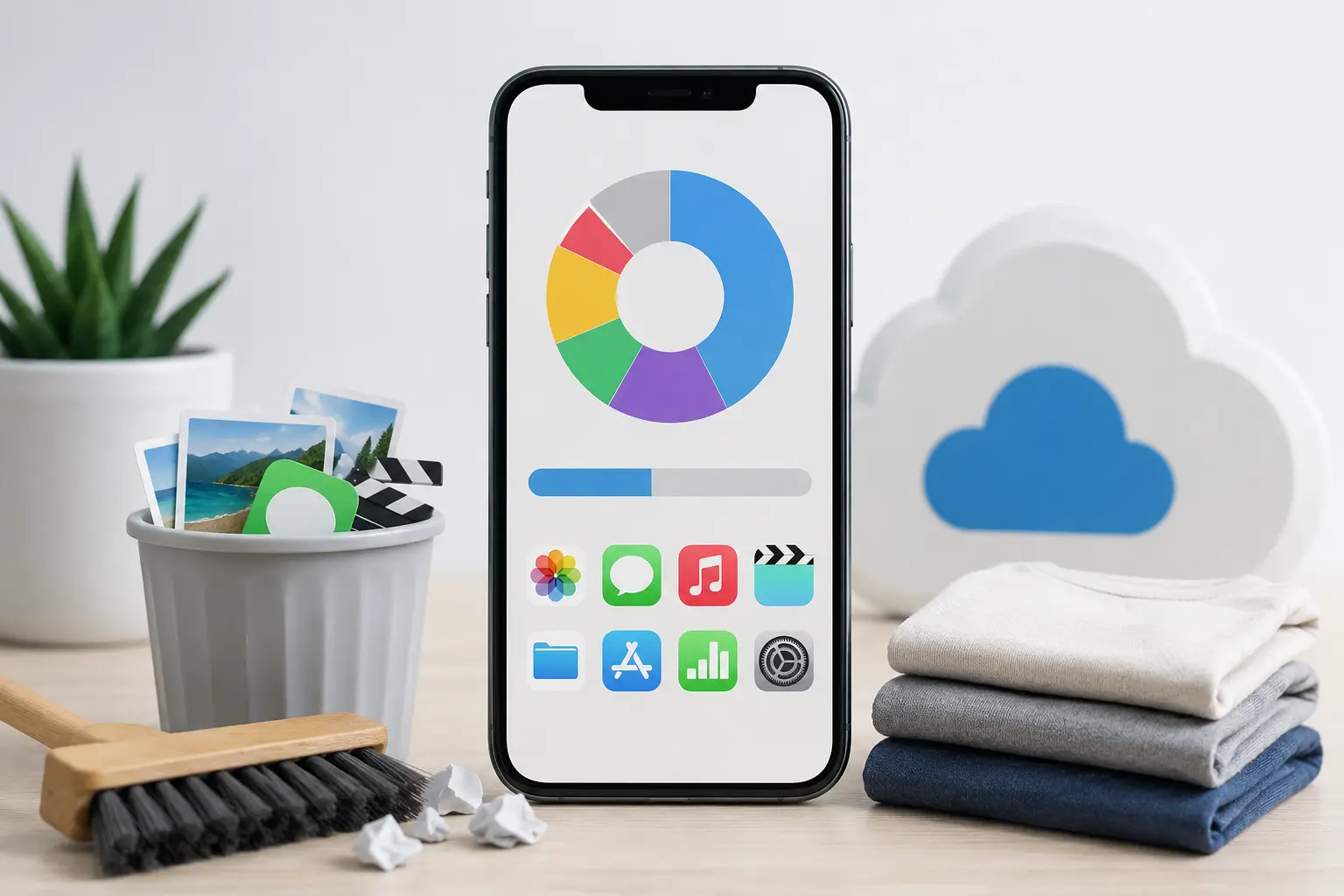
Go to Settings > General > iPhone Storage. This shows a breakdown of how your storage is being used, sorted by category. You'll see a bar chart at the top and a list of apps ranked by storage consumption below it.
Most people are surprised to find that Photos, Messages, and a handful of apps (social media, streaming, games) account for 70% or more of their used storage. This screen tells you exactly where to focus.
2. Offload Unused Apps
iOS has a built-in feature called "Offload Unused Apps" (Settings > General > iPhone Storage > Enable Offload Unused Apps). This automatically removes apps you haven't used recently but keeps their data. When you tap the app icon again, it re-downloads and your data is still there.
You can also offload individual apps manually from the same screen. Tap any app and select "Offload App." This is useful for large apps you use infrequently, like games you finished months ago.
3. Clear the Photos and Videos Backlog
Photos and videos are almost always the biggest storage consumer. If you have iCloud Photos enabled, go to Settings > Photos > Optimize iPhone Storage. This keeps full-resolution versions in iCloud and stores smaller versions on your phone, freeing up significant space.
If you don't use iCloud Photos, go through your camera roll and delete duplicates, blurry shots, and screenshots you no longer need. Don't forget to empty the Recently Deleted album afterward (Photos > Albums > Recently Deleted > Select All > Delete All). Files sit in Recently Deleted for 30 days, still consuming space.
Videos are the biggest offenders. A single minute of 4K video takes roughly 400MB. Check your camera roll for long videos you can back up to a computer and delete from the phone.
4. Clean Up Messages
If you've never changed the default, your iPhone keeps every text message, photo, and video you've ever sent or received through iMessage and SMS. Over years of use, this can consume several gigabytes.
Go to Settings > Messages > Keep Messages and change it from "Forever" to "1 Year" or "30 Days." This automatically deletes older messages.
For a quicker cleanup, open the Messages app, find conversations with lots of photos and videos (group chats are usually the worst), tap the contact name at the top, scroll down to Photos, and selectively delete the large media files you don't need.
5. Delete and Reinstall Storage-Heavy Apps
Some apps accumulate cached data that grows over time. Social media apps are notorious for this. Instagram, TikTok, Twitter, and Facebook can each store hundreds of megabytes to several gigabytes of cached content.
Check each app's storage in Settings > General > iPhone Storage. If an app shows a large gap between its App Size and its Documents & Data, deleting and reinstalling it clears the cached data. Your account and preferences are restored when you sign back in.
6. Clear Safari Data
Go to Settings > Safari > Clear History and Website Data. This removes cached web pages, cookies, and browsing history. On its own, this usually reclaims a few hundred megabytes, which isn't massive but adds up alongside other cleanup efforts.
If you use Chrome or another browser, clear its cache from within the app's settings as well.
7. Review Downloaded Content
Streaming apps (Netflix, Spotify, Apple Music, YouTube, podcasts) let you download content for offline use. These downloads are easy to forget about. Check each streaming app for downloaded movies, episodes, playlists, or podcast episodes you've already watched or listened to.
Spotify in particular can consume several gigabytes if you download multiple playlists with high-quality audio settings.
8. Update iOS
Major iOS updates sometimes optimize storage usage. If you've been putting off an update because you don't have enough space, connect your iPhone to a computer and update through Finder (Mac) or iTunes (PC). Computer-based updates need less free space on the phone than over-the-air updates.
When 'Storage Full' Means Something Else
If you've cleared everything possible and the phone still shows nearly full storage, check the "System Data" or "Other" category in Settings > General > iPhone Storage. If this number is abnormally large (10GB+), a corrupted cache or failed update may be consuming space. A backup-and-restore (back up the phone, erase it, then restore from the backup) can reclaim this space.
Storage Problems Beyond Software
If your iPhone frequently slows down, crashes, or shows storage errors even after cleanup, the issue could be hardware-related. Failing NAND storage (the flash memory chip) can report incorrect available space or cause persistent performance problems that no amount of clearing will fix.
If you suspect a hardware storage issue, our Albuquerque iPhone repair team can run a diagnostic. Get in touch here.